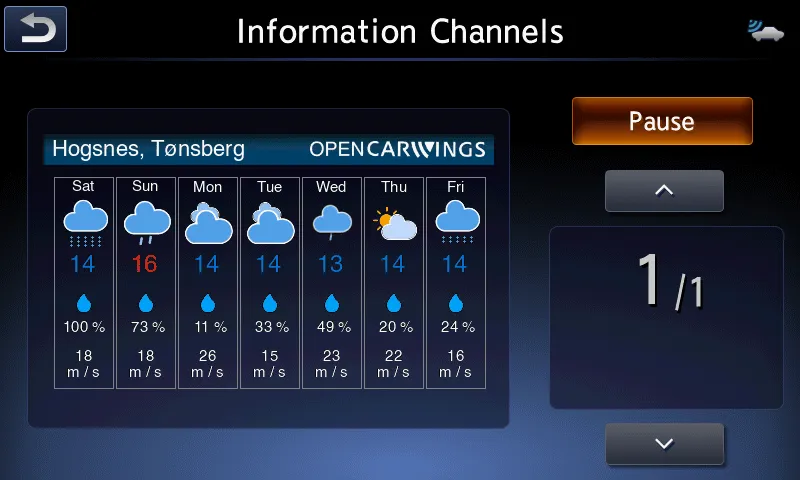
Bringing your navigator back online (single SD slot)
This guide walks you through changing your navigator’s APN settings and server URL so it can reach OpenCARWINGS again. It applies to the AZE0 and ZE1 (30/40 kWh, 2016–2019). Follow each step carefully.
Step 1: Back up or clone your SD card
Section titled “Step 1: Back up or clone your SD card”Make a backup of your navigation SD card, and ideally a clone as well in case the old card fails. A clone needs a new SD card that you will then use in the navigator.
-
Download LeafSDTools Companion.
-
Use LeafSDTools Companion to make a backup of your original SD card.
-
(Only if you are making a clone) Restore the backup to the new SD card.
-
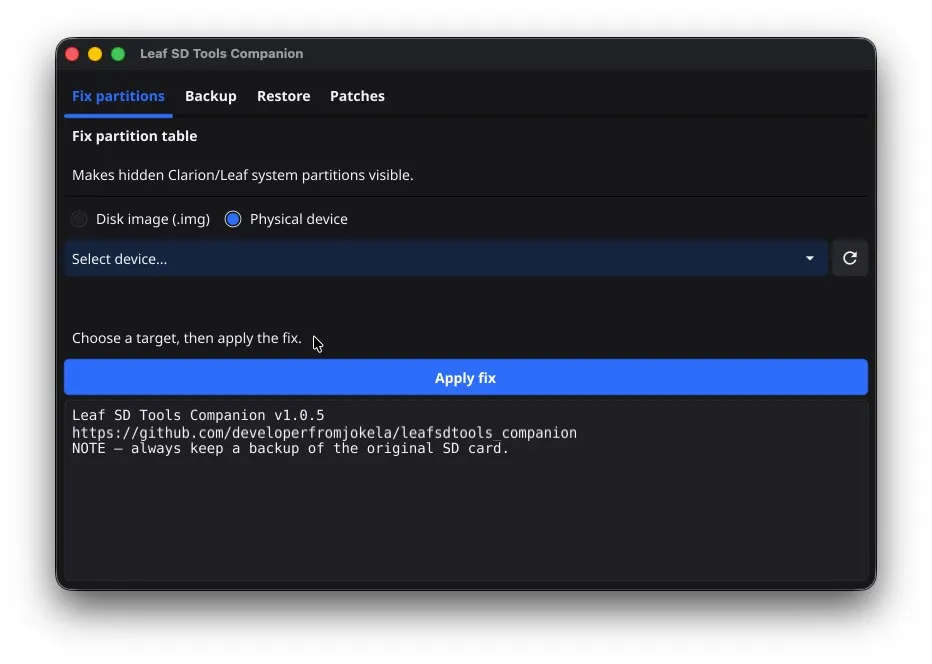
Select the SD card in LeafSDTools Companion, open the Fix partition tab, click Apply Fix and wait for it to finish.
-
After the fix, more than one partition should be visible.
Step 2: Edit the navigation unit settings
Section titled “Step 2: Edit the navigation unit settings”With the SD card plugged into your computer, one of its partitions contains the file PRIVATE/CWS/AP/CWS_SYS.
-
Copy
CWS_SYSfrom the SD card somewhere else, for example your Desktop or Documents folder. -
Open https://opencarwings.viaaq.eu/navi in your browser.
-
Choose SD Card and select the
CWS_SYSfile. The fields should fill in and Connection Profile 1 should appear. If not, please contact the developer.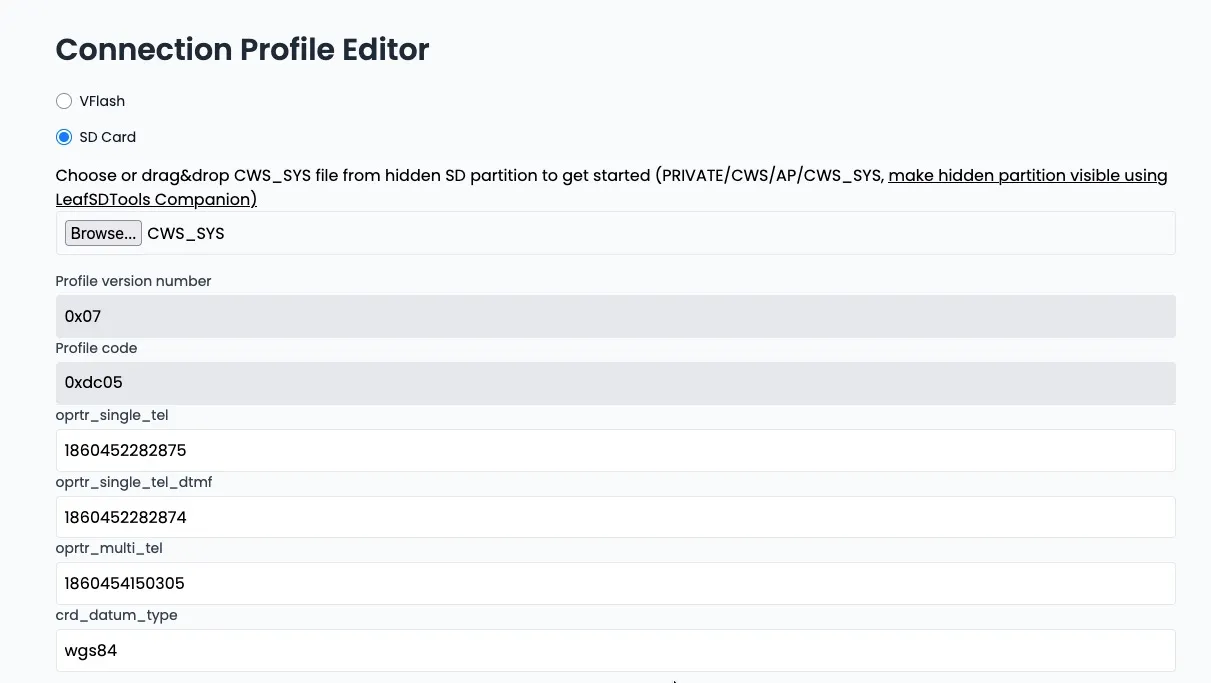
-
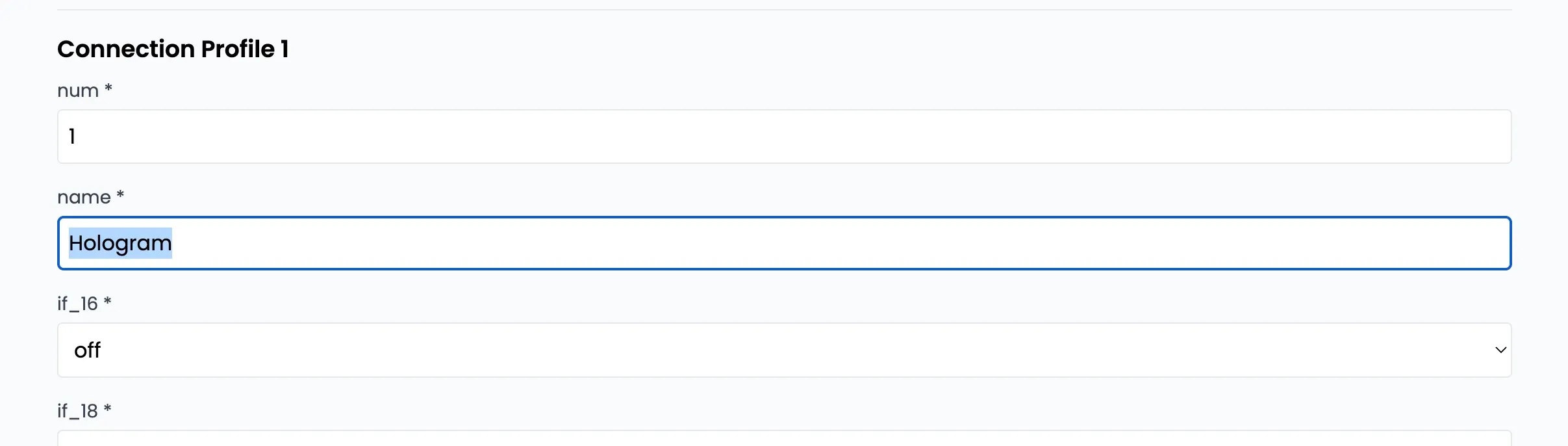
Name your connection profile after your mobile operator.
-
Change the APN name in the
apn [cws]field. Depending on your SIM provider you may also need to change the APN user and password inusr [cws]andpsswrd [cws].


-
Change the server URL in the
url [cws]field.Server URL Original: http://biz.nissan-gev.com/WARCondelivbas/it-m_gw10/New: http://biz.viaaq.eu/WARCondelivbas/it-m_gw10/Original:
![The url [cws] field with the original Nissan URL](/static/docs/_astro/img15.DtkZrErY_sH9Ss.webp)
Modified:
![The url [cws] field with the modified URL](/static/docs/_astro/img16.DmBnRyUA_2opOfC.webp)
-
Scroll to the bottom and click Export. A new settings file is downloaded. Copy it onto the SD card at
/PRIVATE/CWS/AP/CWS_SYS, and confirm if asked to overwrite the existing file.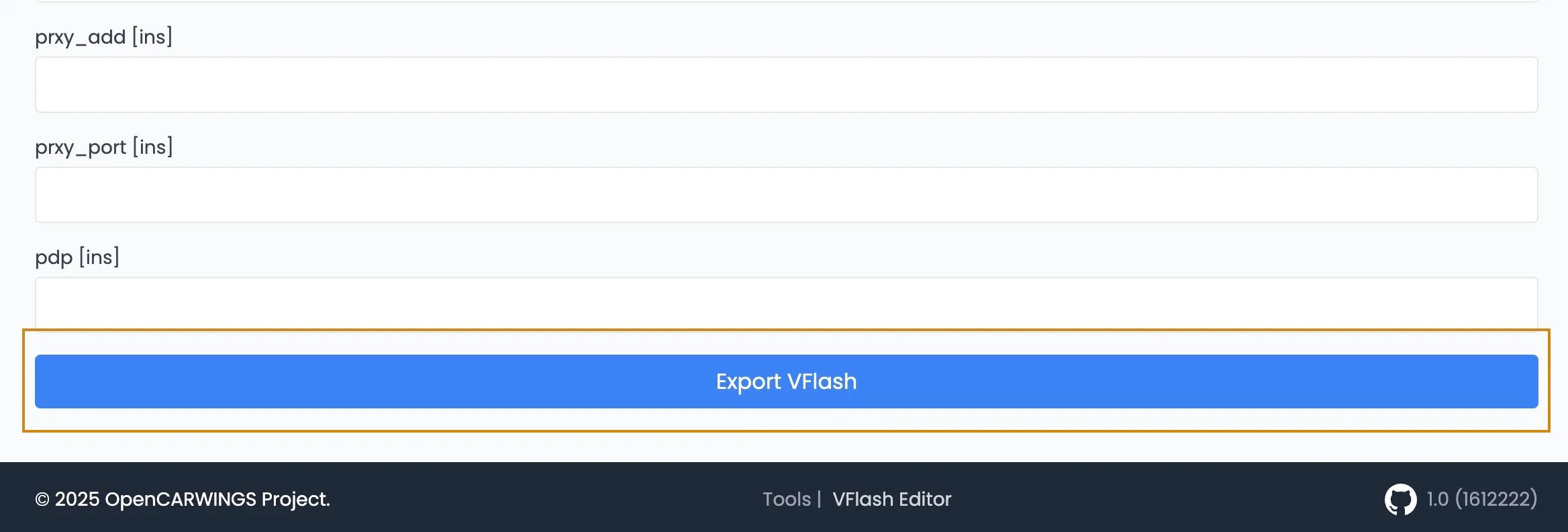
Step 3: Try NissanConnect services
Section titled “Step 3: Try NissanConnect services”Put the SD card back in the navigator and check whether any of the data channels are accessible.