Bringing your LEAF / e-NV200 TCU back online (ZE1 2016–2020, e-NV200 2018-2022)
Difficulty: Difficult
Step 1: Obtain a SIM card (or two)
Section titled “Step 1: Obtain a SIM card (or two)”The TCU needs a SIM card for cellular connectivity.
- Recommended provider: a SIM from viaaq mobile. It integrates with OpenCARWINGS out of the box, has an affordable data plan and supports Binary SMS.
- SIM type: a standard Mini SIM (2FF), or a SIM that works with an adapter.
- Data plan: at least 1–5 MB per month without a navigation unit, or 5–10 MB per month with one (the navigation unit periodically updates nearby charging stations).
- Alternative providers: if viaaq mobile isn’t available or doesn’t suit you, use a provider with affordable data and SMS support (for example AT&T or T-Mobile prepaid SIMs). You will then need a way to send Binary SMS over the internet, such as Seven.io, gatewaysms, the OpenCARWINGS SMS gateway, a similar service, or your own webhook-based setup.
- Why a second SIM may be necessary: sending SMS may require a second SIM, usually used in a USB modem (see the SMS gateway below).
Step 2: Access the TCU
Section titled “Step 2: Access the TCU”On RHD cars the TCU sits behind the glovebox, and the physical location is the same on LHD cars.
Tools and preparation
Section titled “Tools and preparation”- Tools: Phillips screwdriver, plastic trim removal tool (to avoid scratches), flashlight.
- Preparation: turn off the vehicle and remove the key to avoid electrical issues.
Remove the glovebox
Section titled “Remove the glovebox”-
Open the glovebox and empty it.
-
Locate and remove the screws (usually 2–4) along the edges or inside the glovebox.
-
Gently pull the glovebox forward. It may be held by clips, so use the trim tool to pry it loose if needed.
-
Disconnect any wiring (for example the glovebox light) by pressing the connector tabs and pulling.
Locate the TCU
Section titled “Locate the TCU”Behind the glovebox you will see a rectangular metal or plastic unit, about the size of a small book, with wiring harnesses and an antenna connection. That is the TCU.
Video guide
Section titled “Video guide”This video shows the disassembly step by step (1:50 – 7:50):
Step 3: Disassemble the TCU, desolder the eUICC chip and solder a SIM slot
Section titled “Step 3: Disassemble the TCU, desolder the eUICC chip and solder a SIM slot”The TCU is easy to open. It is held together by a few plastic clips accessible from the outside.
Tools required: microsoldering station (heat gun), soldering iron, SIM card holder and, ideally, flux.
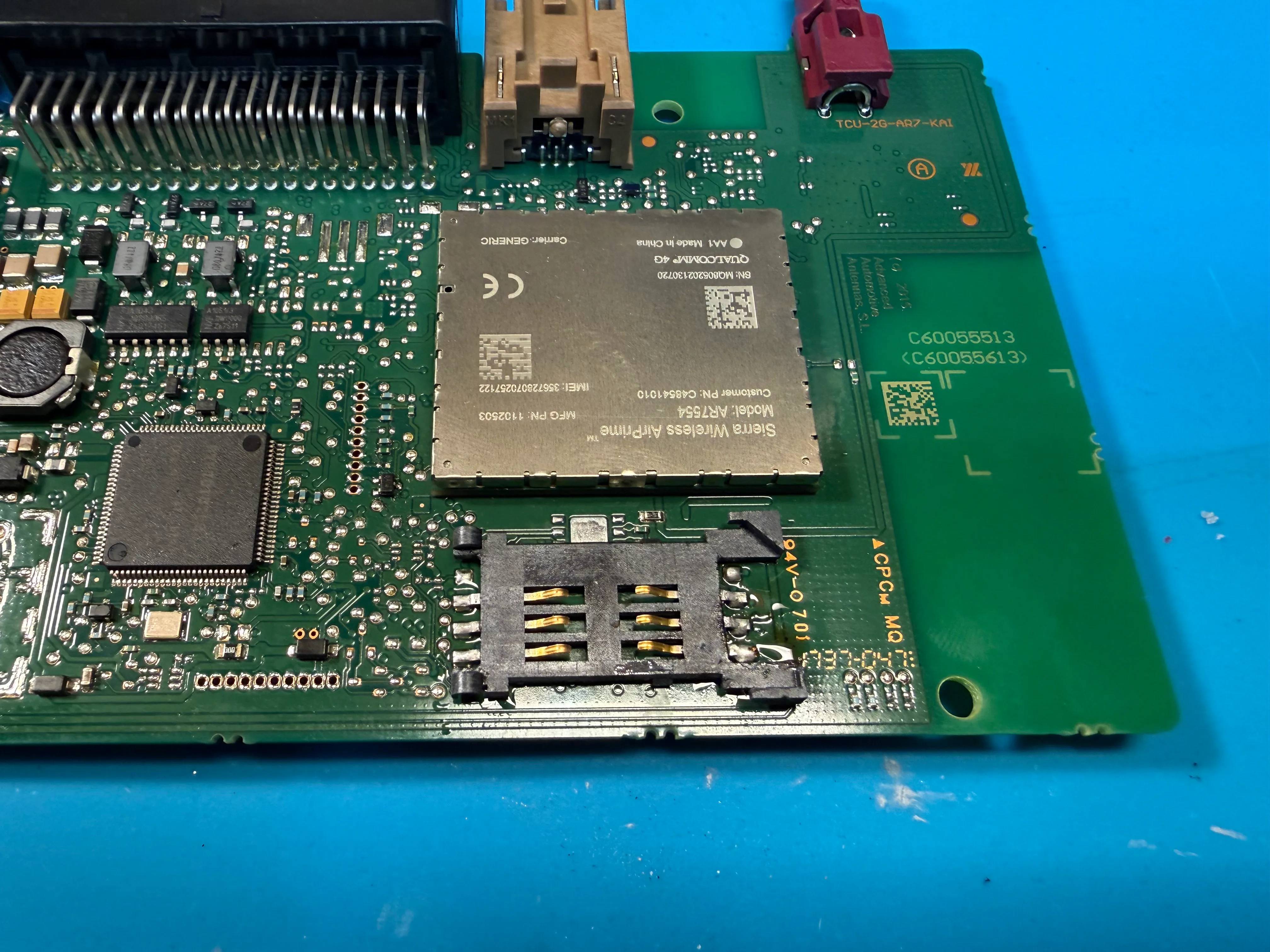
Some example parts:
1: Remove the old eUICC SIM
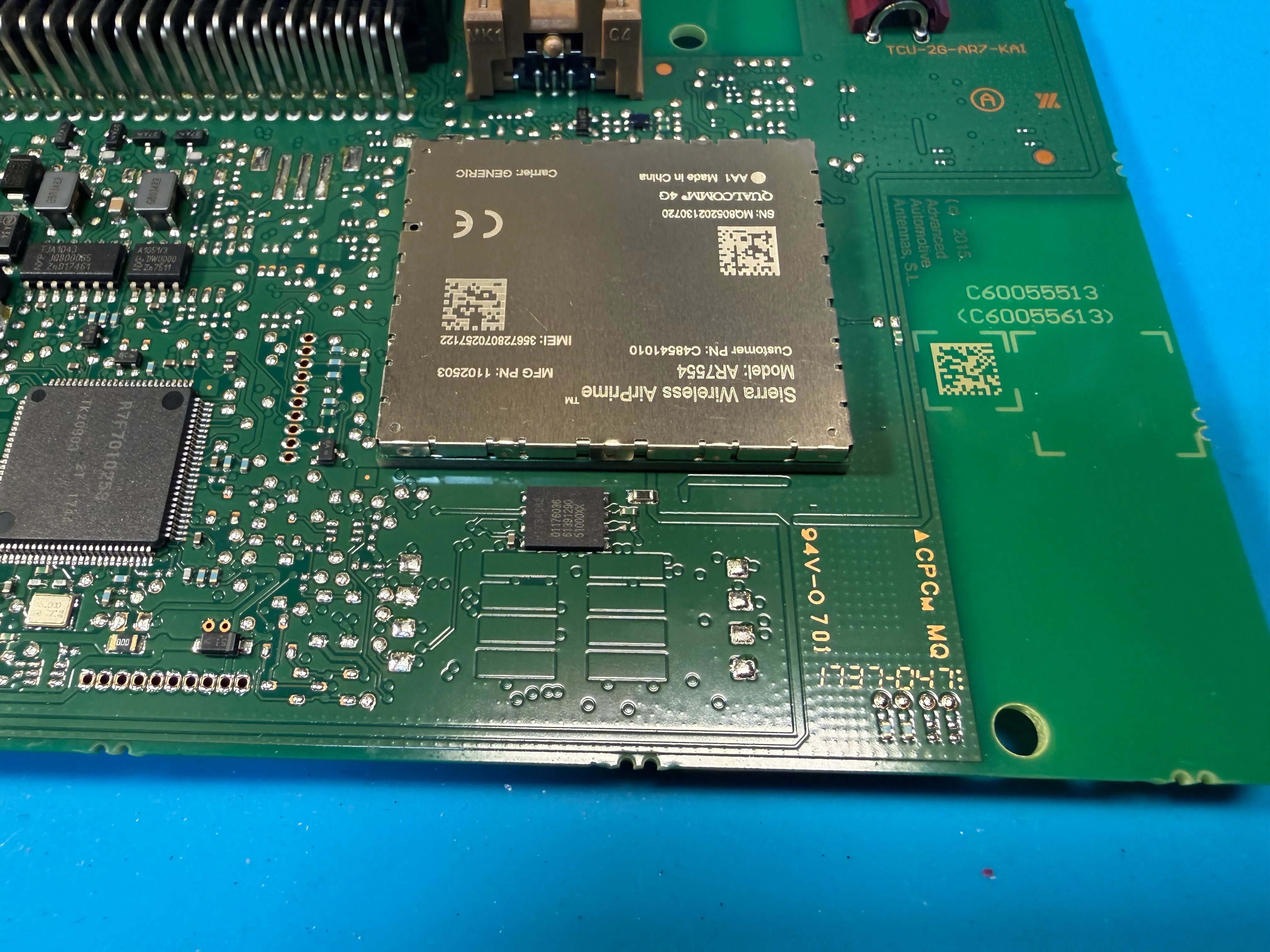
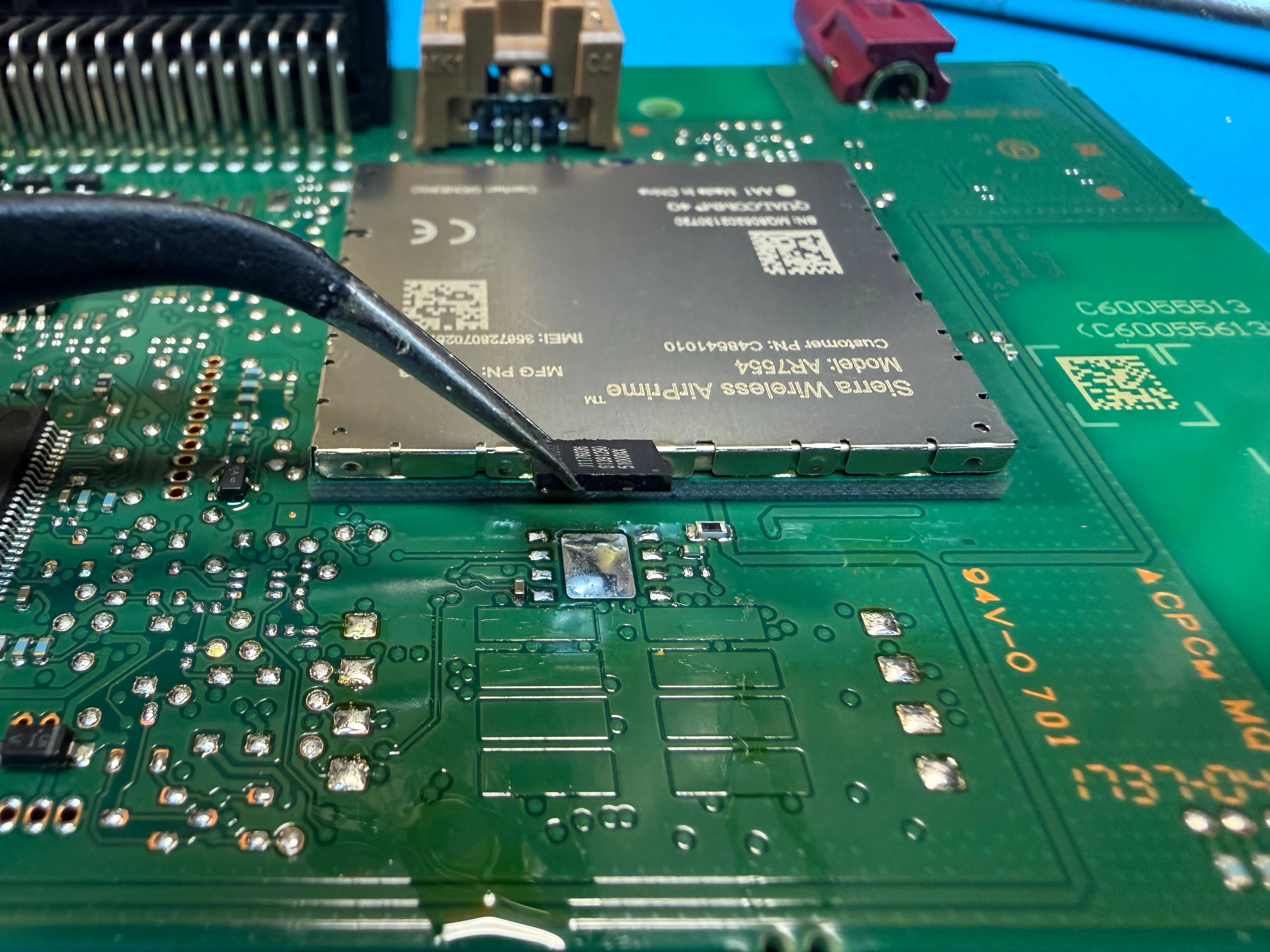
Section titled “1: Remove the old eUICC SIM”Use a microsoldering station or heat gun to remove the old eUICC. A temperature of around 380–410 °C removes the chip quickly and effectively.
2: Solder the new SIM slot
Section titled “2: Solder the new SIM slot”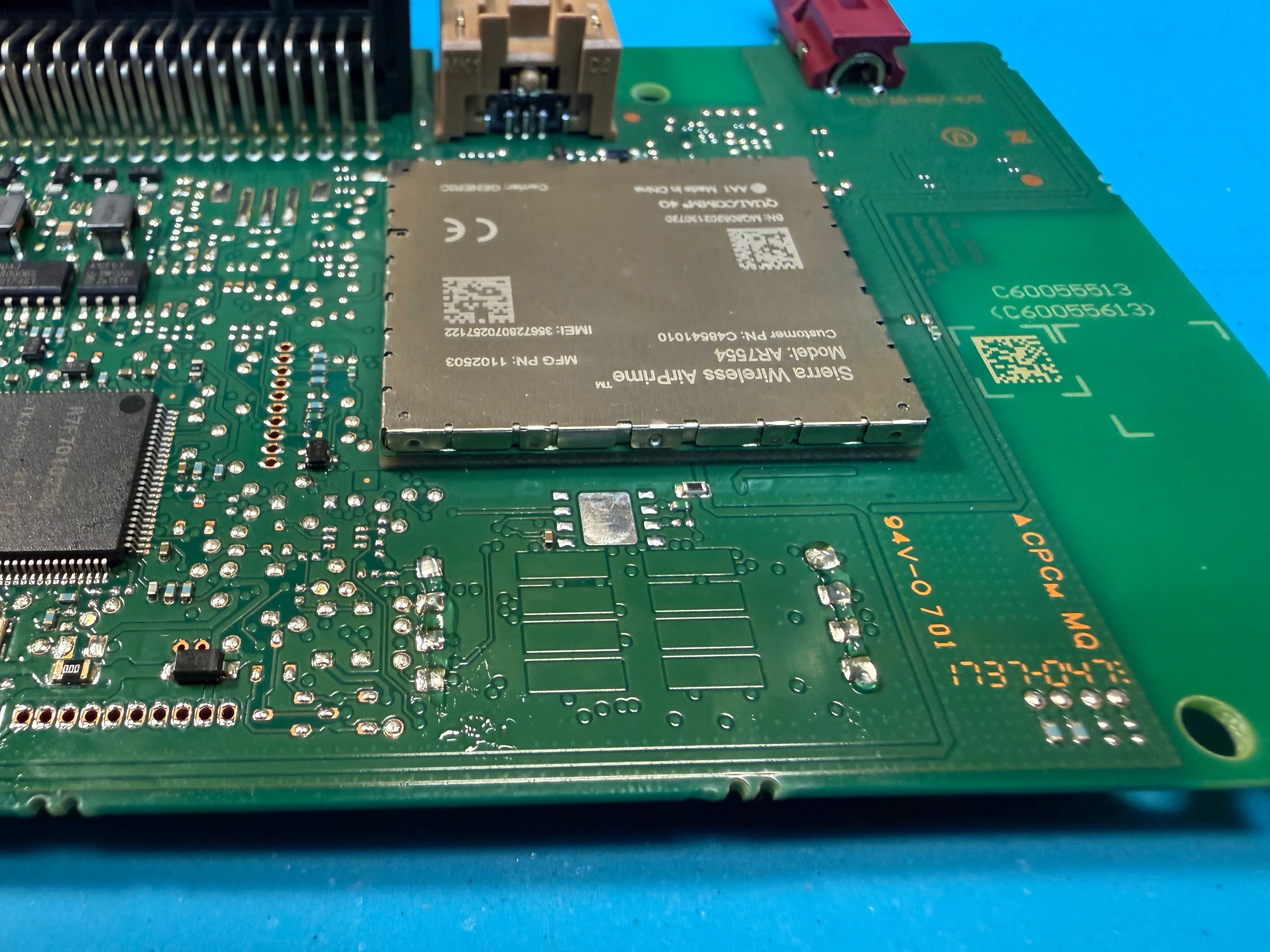
Apply flux to the contacts if you have it, then solder the slot on in the orientation shown above (4G version). For 3G the orientation is different. Afterwards, clean off the flux, for example with isopropyl alcohol.
3: Confirm operation
Section titled “3: Confirm operation”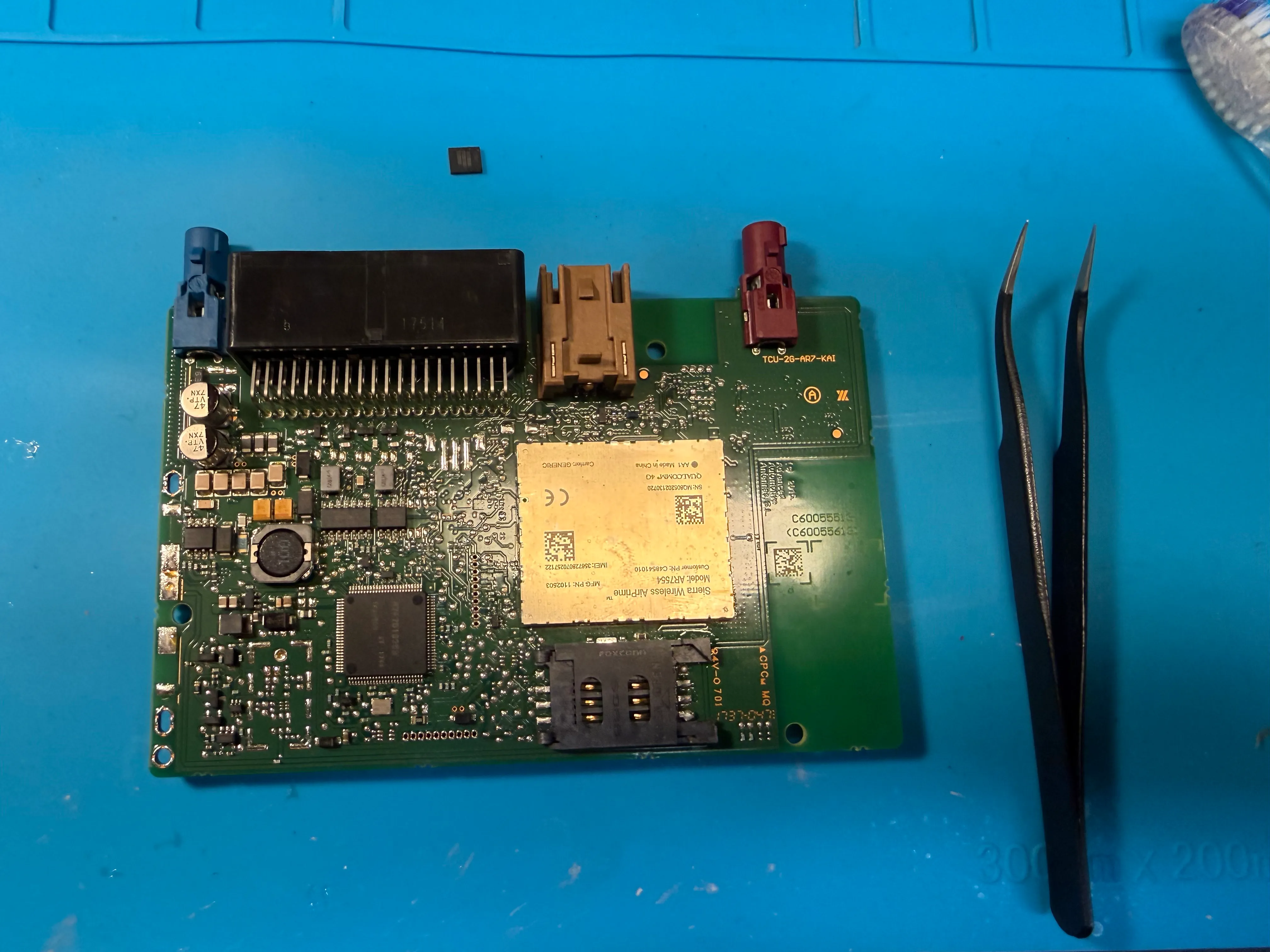
When you’re done, you can easily test whether the SIM card works. Plug the SIM back into the car and watch the car icon on the navigation system:
 If the car icon is crossed out, the TCU isn’t getting cell reception. Possible causes are poor signal, a SIM card registration issue, or the SIM card not being detected.
Another way to check for SIM functionality, run “Retrieve & Update SIM Information”.
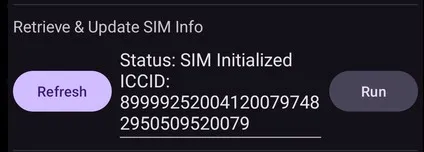
Step 4: Program the settings
Section titled “Step 4: Program the settings”The Access Point Name (APN) and server information must be configured so the TCU can connect to the cellular network. You do this with an Android app.
-
Download the app. Get the TCU Configurator from GitHub: tcu-configurator-xx.apk.
-
Install the app.
- Transfer the
.apkfile to your Android device (USB, email, etc.). - Enable “Install from unknown sources” in Settings > Security.
- Open the file and install the app.
- Transfer the
-
Connect to the TCU. Power the vehicle on to ACC mode (important), then use the app to connect to the TCU via Bluetooth OBD.
-
Set only the TSP APN fields.
- Open the app and find the TSP APN settings.
- Enter your SIM provider’s APN into the fields named TSP APN Name, TSP APN Username, TSP APN Password. Leave the other APN fields as they are. For example, almost all Finnish operators use
internet, viaaq mobile shows the APN in the subscription details, and other providers list it on their website. - Save and apply the settings.
-
Set the server information.
-
Enter the server details in the TCU Configurator app:
Field Value OBS URL http://biz-tcu.viaaq.euOBS Port 80 -
Save and apply the settings.
-
Step 5: Complete the setup on the website
Section titled “Step 5: Complete the setup on the website”Finish the TCU setup in the web portal: sign in to OpenCARWINGS and follow the Add Car process.
Step 6: Configure your preferred SMS provider
Section titled “Step 6: Configure your preferred SMS provider”Finalize the TCU activation by setting up an SMS provider in the OpenCARWINGS settings.
- SMS providers: the providers shown in settings are limited to those capable of sending Binary SMS.
- Set Up OpenCARWINGS SMS Gateway (if using a modem): set up a Raspberry Pi, computer or server as a relay. The latest releases are at developerfromjokela/opencarwings-sms. Android is not supported.
- Verify: do a data refresh to confirm the TCU is receiving SMS.